
Capcut is a popular video editing app. It’s perfect for beginners.
With its simple interface, anyone can start editing videos. Video editing seems complex, but Capcut makes it easy and fun. As a beginner, you might feel overwhelmed by editing software. Capcut simplifies the process with its user-friendly design. You can trim, cut, and add effects without hassle.
This tutorial will guide you through the basics, helping you create impressive videos. Whether you’re editing a short clip or a longer film, Capcut’s features are tailored for ease. Dive into the world of video editing and unleash your creativity. This tutorial will show you the ropes, step by step. Ready to start your journey in video editing? Let’s explore Capcut together.
Introduction To Capcut
Explore Capcut, a user-friendly video editing tool perfect for beginners. Learn basic techniques to create engaging videos effortlessly. Start editing with ease and bring your creative ideas to life.
Are you looking to create stunning videos right from your smartphone? Welcome to the world of Capcut! This beginner-friendly video editing app is gaining popularity for its powerful features and easy-to-use interface. Whether you’re a content creator or someone who just wants to have fun with video editing, Capcut offers a versatile platform to bring your ideas to life.What Is Capcut?
Capcut is a free, all-in-one video editing app available for both Android and iOS devices. It allows you to edit videos with a range of tools and effects, making it simple to create professional-looking content. You can trim, merge, and adjust video clips effortlessly. With options to add text, music, filters, and more, Capcut is designed to help you craft videos that truly stand out. Capcut’s user-friendly layout makes it accessible even if you’re new to video editing. It provides templates and tutorials that guide you step-by-step through the editing process. You can start small and gradually explore more advanced features as you become comfortable.Why Choose Capcut?
Why should you consider Capcut over other video editing apps? First, it’s free and doesn’t watermark your videos, which is rare for apps with similar capabilities. This means you can share your creations without worrying about branding distractions. Capcut also offers a comprehensive suite of editing tools that cater to both beginners and more experienced editors. From basic trimming and cutting to advanced speed controls and keyframe animations, it has everything you need. It’s like having a mini editing studio in your pocket. Another reason to choose Capcut is its seamless integration with social media platforms. You can directly upload your edited videos to TikTok, Instagram, and other sites with just a few taps. This streamlines your workflow, saving you time and effort. Have you ever wanted to add a unique touch to your videos but found it too complicated? Capcut simplifies the process with intuitive controls and a supportive community of users. You can find countless tutorials and tips online to enhance your editing skills. So, are you ready to give Capcut a try? With its robust features and ease of use, it’s time to unleash your creativity and start editing like a pro!Getting Started
Capcut is a popular video editing app. It’s perfect for beginners. If you’re new to video editing, this tutorial will guide you. Let’s dive into the basics of getting started with Capcut.
Downloading The App
First, you need to download Capcut. It’s available for iOS and Android. Visit the App Store or Google Play. Search for Capcut. Click download. Once downloaded, open the app. It’s user-friendly and easy to navigate.
Setting Up Your Account
After downloading, set up your account. Open the app. You’ll see a sign-up option. You can use your email or social media. Choose your preferred method. Follow the prompts. Enter your details. Create a username. Your account is ready. You can now start editing videos.
Exploring The Interface
CapCut, a dynamic video editing app, offers a user-friendly interface that appeals to beginners eager to dive into the world of creative editing. As you launch CapCut, the interface might seem overwhelming at first glance. However, understanding its layout is the first step to transforming your raw footage into a masterpiece. Let’s break down the essentials of navigating this interface, making your editing journey smoother and more enjoyable.
Navigating The Dashboard
When you first open CapCut, you’re greeted by a clean dashboard, designed to help you access your projects quickly. Here, you’ll find options to start a new project or resume an existing one. The dashboard is your command center.
Notice the clear icons representing features like ‘New Project’, ‘Drafts’, and ‘Templates’. These make it easy to jump straight into editing. You might find yourself using the ‘Drafts’ section often, especially when juggling multiple projects.
Consider this: how can organizing your projects on the dashboard enhance your workflow? Efficient navigation ensures that your creativity remains uninterrupted.
Understanding Key Features
CapCut’s interface is equipped with several key features that simplify video editing. You’ll find tools for cutting, trimming, and splitting clips, all easily accessible. These features are intuitive, allowing you to make adjustments with precision.
Look out for the ‘Effects’ tab, where you can add flair to your videos. Experimenting with filters and transitions can greatly enhance your content. Remember, subtle effects often yield the best results.
Think about how these features can help you achieve your editing goals. Are you aiming for a seamless cut or perhaps a dramatic transition? By familiarizing yourself with these tools, you unlock endless possibilities for creativity.
CapCut’s interface is designed to empower you, the creator, with tools that are both accessible and effective. As you explore the interface, think about how each feature serves your unique style and vision.
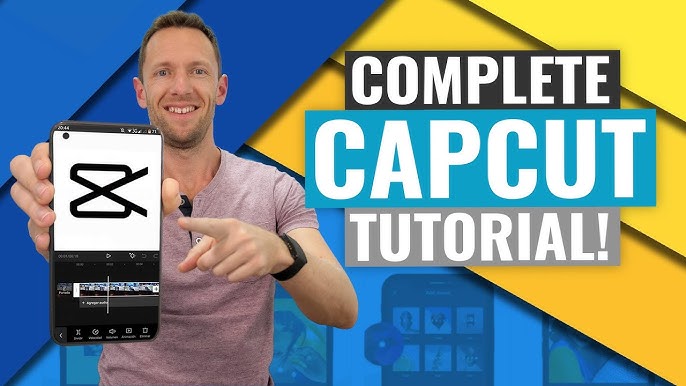
Credit: www.youtube.com
Basic Editing Techniques
Capcut is a fantastic video editing tool that offers a wide array of functionalities for beginners. Learning the basic editing techniques is crucial to create engaging videos. Let’s dive into some essential methods that will give your videos a polished look.
Trimming Clips
Trimming clips is the first step in refining your video. It’s about cutting out unnecessary parts to keep your content concise and engaging. Imagine you’ve shot a 30-minute video, but only 10 minutes are truly captivating. With Capcut, trimming is simple. Select the clip you want to edit, drag the edges to shorten or extend it. A friend once shared how trimming helped turn her lengthy vacation footage into a captivating short video. Have you ever noticed how a trimmed video feels more dynamic?
Adding Transitions
Transitions are the glue that holds your clips together. They smooth out abrupt changes and make your video flow seamlessly. Capcut offers various transition effects like fades, slides, and wipes. When I first started using Capcut, adding transitions transformed my scattered clips into a cohesive story. To add a transition, tap on the transition icon between two clips and choose your preferred style. It’s like the magic wand of video editing. What’s your favorite transition style that adds flair to your videos?
Basic editing techniques like trimming and adding transitions are the foundation of great video content. They help you tell a compelling story by focusing on the essence of your footage. Give these techniques a try on your next project to enhance your editing skills.
Enhancing Videos
Enhancing videos can transform simple clips into captivating stories. CapCut, a free video editing app, offers tools that elevate your editing game. Beginners can use it to polish their videos with ease. From filters to text, each element adds a unique touch. Discover how to enhance your videos with CapCut.
Applying Filters
Filters can change the mood of your video. CapCut offers a variety of filters for different styles. Choose a filter that matches your video’s theme. Filters can make colors pop or give a vintage look. Applying filters is simple. Just select your clip, then tap on the ‘Filter’ option. Browse through the available filters and tap to apply.
Adjust the intensity of the filter to suit your taste. A subtle touch often works best. Filters can enhance the overall feel of your video. They add depth and interest, making your content more engaging.
Incorporating Text
Text can convey important information in your video. CapCut makes adding text easy. First, select the spot in your video where you want text. Tap on the ‘Text’ option in the editing tools. Type your message in the provided box. Adjust the font, color, and size to match your style.
Text can introduce scenes or highlight key points. Keep it short and clear for better impact. Use text to guide viewers through your story. It’s a simple way to enhance communication in your videos.
Adding Music And Sound
Adding music and sound to your Capcut video can transform it from ordinary to extraordinary. Whether you’re creating a travel montage or a cooking tutorial, the right audio can set the tone and enhance the viewer’s experience. Let’s dive into how you can choose the perfect track, adjust volume levels, and make your video come alive.
Choosing Audio Tracks
Picking the right music is crucial. Start by considering the mood you want to convey—are you aiming for excitement or tranquility? Capcut offers a library of free tracks, making it easy for you to find something that fits your theme.
Browse through categories like ‘Happy’, ‘Sad’, or ‘Energetic’. Don’t rush. Listen to several options before settling on one. Think about how the music complements your visuals.
Personal tip: I once used upbeat jazz for a gardening video. It unexpectedly added a playful touch and kept viewers engaged. What unexpected pairing can you try?
Adjusting Volume Levels
Volume control is key to ensuring your music enhances rather than overwhelms your video. Start by balancing the audio track with your video’s original sound. You don’t want your voiceover drowned out by loud music.
Capcut allows you to easily adjust volume levels through its intuitive slider. Test different settings to find a balance where both the audio and visuals shine.
Consider your audience’s viewing environment. If your video will be watched on mobile devices, ensure the sound is clear even at lower volumes.
Take these practical steps to perfect your video audio. Remember, the right music and sound can captivate your audience and make your content unforgettable. What song will you choose next?
Advanced Editing Tools
Diving into CapCut’s advanced editing tools is like discovering a treasure chest of creative opportunities. As you begin to explore these features, you’ll find yourself transforming simple clips into captivating stories. Whether you’re looking to add dynamic movements or create effects that pop, these tools will elevate your video editing skills to the next level.
Utilizing Keyframes
Keyframes are the secret sauce for making your videos come alive. They allow you to animate elements within your video, giving you control over movement and transitions.
Imagine you have a static image on your video. With keyframes, you can make it slide across the screen, zoom in, or even rotate. This adds a dynamic touch that keeps your audience engaged. Just think about the last time a subtle animation caught your attention—it probably made the video more enjoyable to watch.
To use keyframes in CapCut, start by selecting the element you want to animate. Place your first keyframe at the starting position, then move the playhead to a new position and adjust the element. CapCut will handle the rest, creating a smooth transition between the two points. It’s like telling a story frame by frame. Why not experiment with different movements and see how they can transform your video?
Working With Green Screen
Green screen editing can feel like magic. It allows you to replace backgrounds, making your video projects limitless in creativity. Ever wanted to film yourself on a sunny beach without leaving your room? Green screen makes it possible.
To achieve this in CapCut, you need a video shot against a solid green background. Once you import the clip, use the “Chroma Key” feature. This tool removes the green, allowing you to add any background you like. It’s a fantastic way to transport your audience anywhere in the world—or even out of this world.
When using green screen, pay attention to lighting. Even lighting helps avoid shadows that can complicate the editing process. Have you ever wondered why professional studios use green screens? It’s because they provide a clean slate for creativity. Try it yourself and see where your imagination takes you.
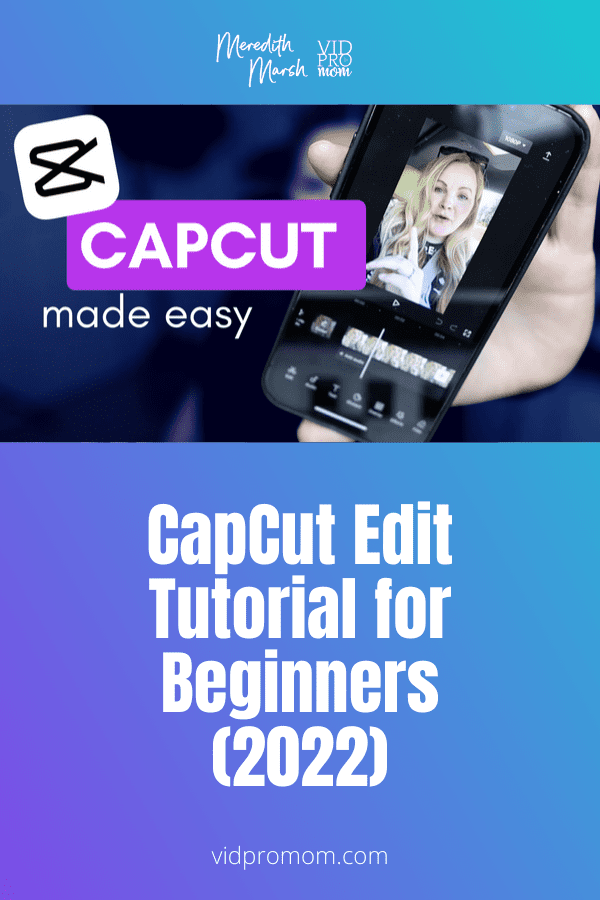
Credit: vidpromom.com
Exporting And Sharing
Exporting and sharing your video is the final step in Capcut. It’s crucial to get it right. This step ensures your creation reaches your audience perfectly. Let’s dive into the process. Understand export settings and share with ease.
Choosing Export Settings
In Capcut, export settings determine video quality. Choose wisely. First, tap the export button. Next, select the resolution. Higher resolution means better quality. But it also means larger file size. Consider your audience’s needs. Choose the frame rate. Most videos use 30fps. It offers smooth playback. Lastly, check the format. MP4 is popular. It works on most platforms.
Sharing On Social Media
After exporting, share your masterpiece. Capcut simplifies this step. Open the sharing options. Select your preferred social media. Popular choices include Instagram and TikTok. Ensure your video fits platform specs. Adjust if needed. Add a catchy caption. Engage your audience. Post at optimal times. Reach more people. Monitor engagement. Learn from feedback. Improve your next project. Sharing enhances visibility. It connects you with a broader audience. Your creativity deserves to shine.
Credit: www.capcut.com
Frequently Asked Questions
How To Use Capcut Step By Step?
Open CapCut app and import your video. Trim or split clips as needed. Add text, filters, or effects. Adjust video speed and audio settings. Preview the video. Save or export your edited video to your device or share it directly on social media platforms.
Is Capcut Easy For Beginners?
Yes, CapCut is user-friendly for beginners. Its intuitive interface makes video editing simple. Users enjoy easy access to features. Tutorials and guides are available for support. Beginners can quickly learn to create professional-looking videos. CapCut’s drag-and-drop functionality enhances user experience.
It’s ideal for those new to video editing.
Is Capcut Ok For 11 Year Olds?
CapCut can be suitable for 11-year-olds with parental guidance. It offers video editing features that are easy to use. Parents should monitor content sharing and interactions. Always ensure privacy settings are appropriately configured to protect young users.
Where Can I Learn Capcut?
Learn CapCut through online tutorials on YouTube or official CapCut resources. Explore courses on platforms like Udemy or Coursera. Practice by editing videos using the app. Join community forums for tips and tricks. Consistent practice will enhance your editing skills quickly.
Conclusion
Capcut is great for beginners exploring video editing. This tutorial guides you through its basic features. Practice makes perfect, so try different tools often. Edit your videos step by step. Experiment with filters and transitions. Create engaging content with ease.
Share your creations with friends and family. Enjoy the process and have fun. Capcut helps turn simple clips into memorable videos. Keep learning and exploring new techniques. With practice, you’ll improve your editing skills. Video editing becomes easier with each project.
Dive in and start creating today!